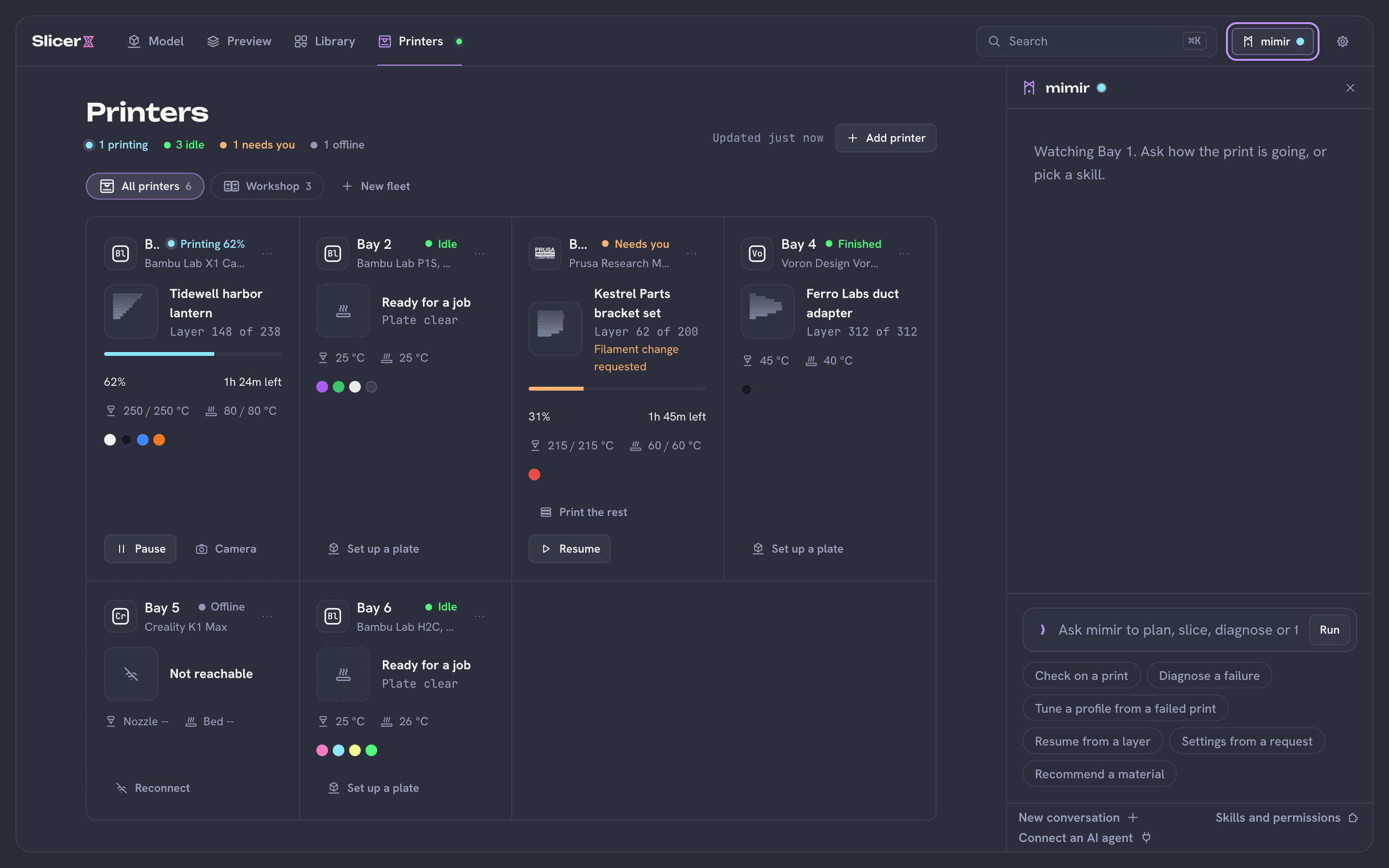
mimir is the assistant inside SlicerX. It answers questions about your prints, settings and failures, and suggests changes that you approve. It runs on an AI model you connect, and it sends nothing while it is off.
Connect a model
On the desktop app, connect ChatGPT.
Open Settings, mimir. The quickest way is the ChatGPT account card: Connect opens your browser to sign in, and mimir then answers through your ChatGPT plan, with nothing to paste. Its use counts against that plan.
Or use an API key or a local model.
Use an API key instead shows the other choices:
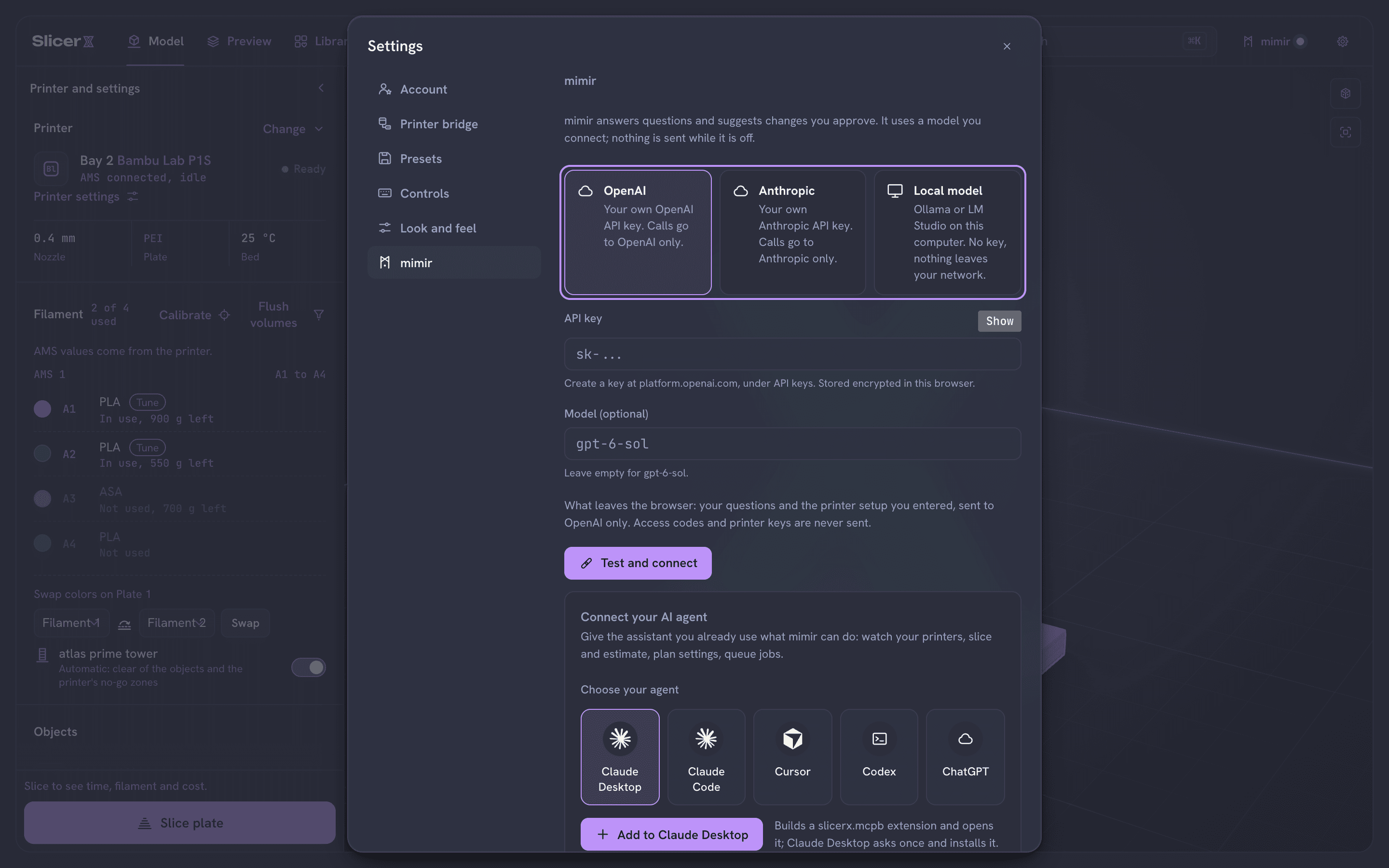
Pick a provider, then Test and connect. Choice What you need Who you pay OpenAI An API key from platform.openai.com OpenAI bills you for what mimir sends Anthropic An API key from the Anthropic Console Anthropic bills you for what mimir sends Local model Ollama or LM Studio running on this computer Nobody: nothing leaves your network Paste the key and press Test and connect. The desktop app keeps the key in your system keychain. mimir sends your questions and the printer setup you entered to that provider only. Access codes and printer keys are never sent.
SlicerX itself costs nothing. The only bill is your provider's, and a local model has none.
Ask
Open mimir.
Press mimir in the top bar, or Cmd+/ (Ctrl+/ on Windows and Linux). Type a question in your own words, such as why a print failed or which setting fixes stringing, or pick one of the starters such as "Check on a print".
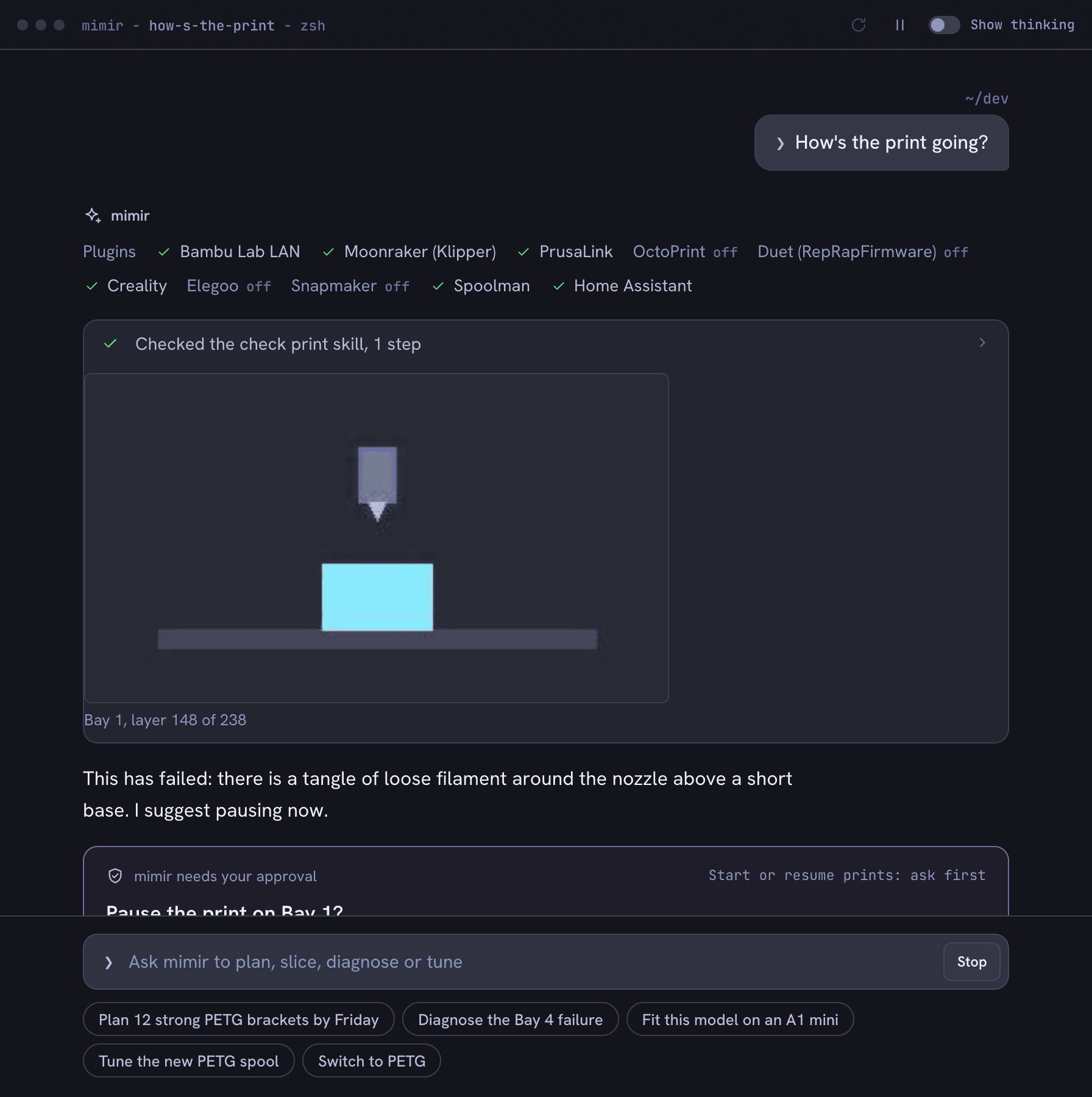
Example conversation; replies scripted for this screenshot. Approve what it suggests.
By default mimir asks first before any step that reaches a printer, changes a saved profile or spends money. The request shows as a card headed "mimir needs your approval" that says what will happen, with Approve, Edit plan and Cancel. A card you leave unanswered expires, and mimir never approves on its own. A card that would start a print also asks you to tick "The build plate is clear and the right plate is on it" first.
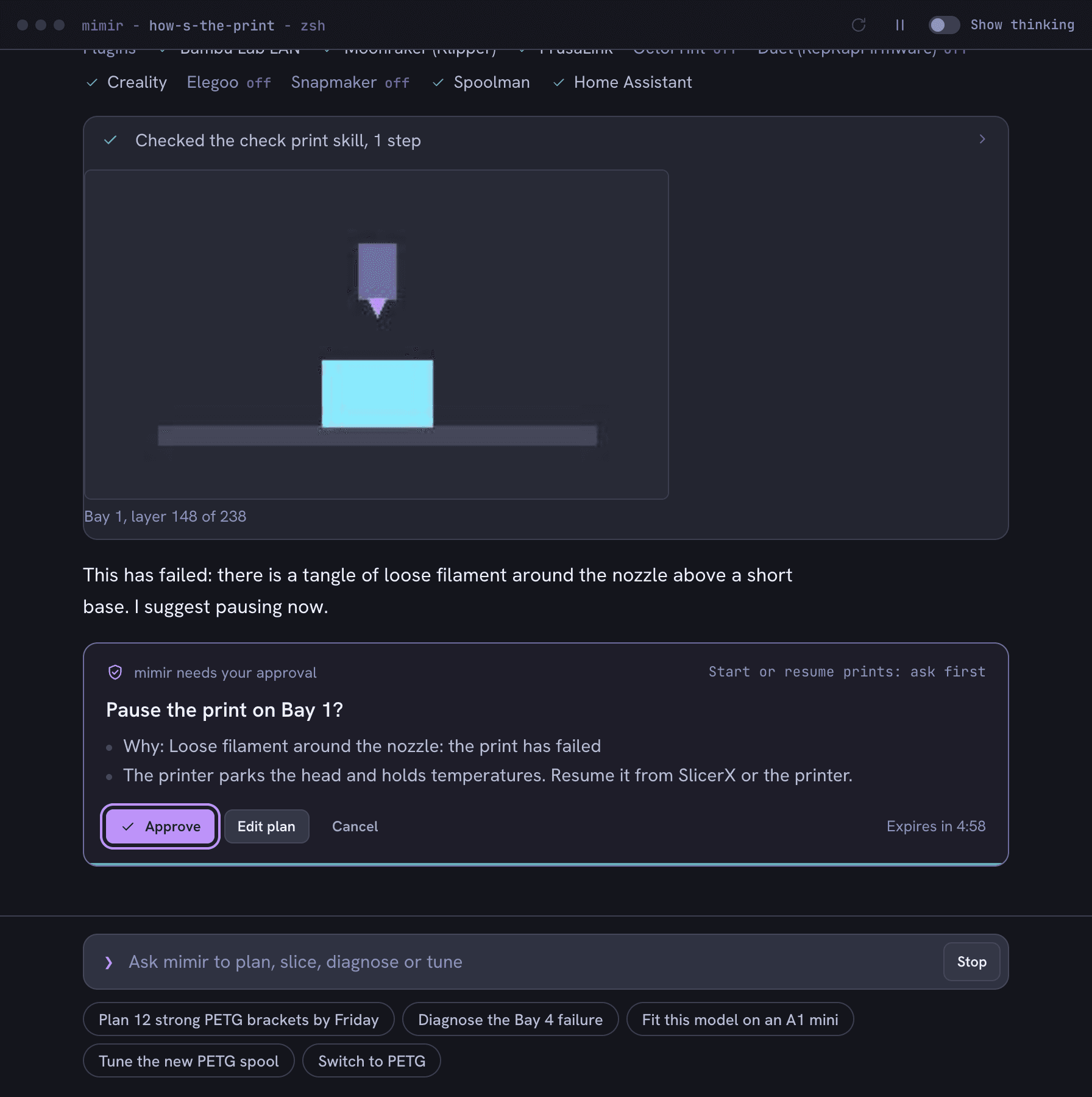
Example conversation; replies scripted for this screenshot. Once you approve, mimir carries out the step and says what happened.
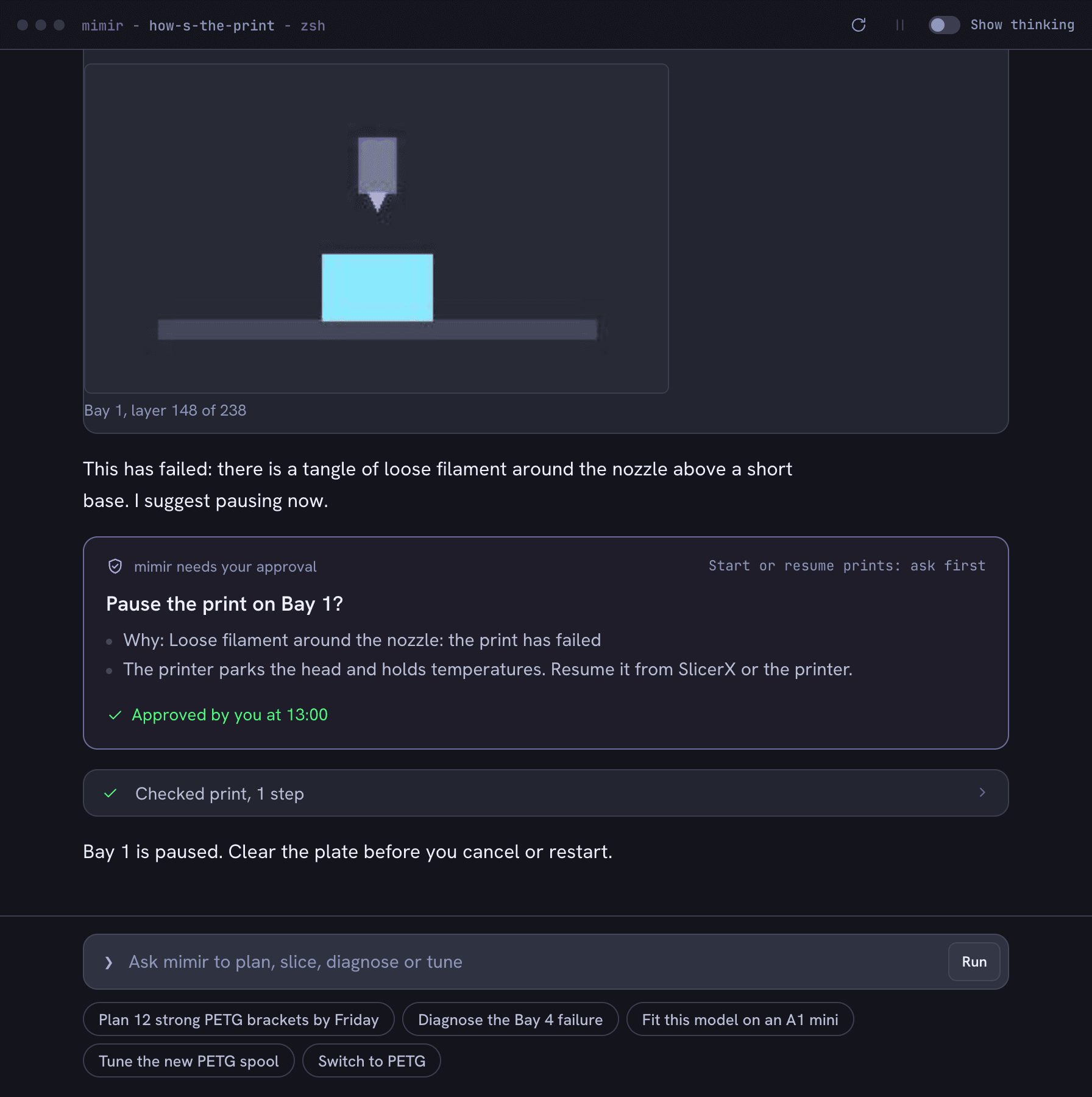
Example conversation; replies scripted for this screenshot. Choose what it may do on its own.
Skills and permissions in the panel sets, for each kind of action, whether mimir may go ahead (Allow), has to ask you first (Ask) or may not do it at all (Off). Slice and arrange is allowed by default. Queue jobs, Change saved profiles, Change printer settings and Share and notify ask first. Start or resume prints always asks or is off: it cannot be set to Allow.
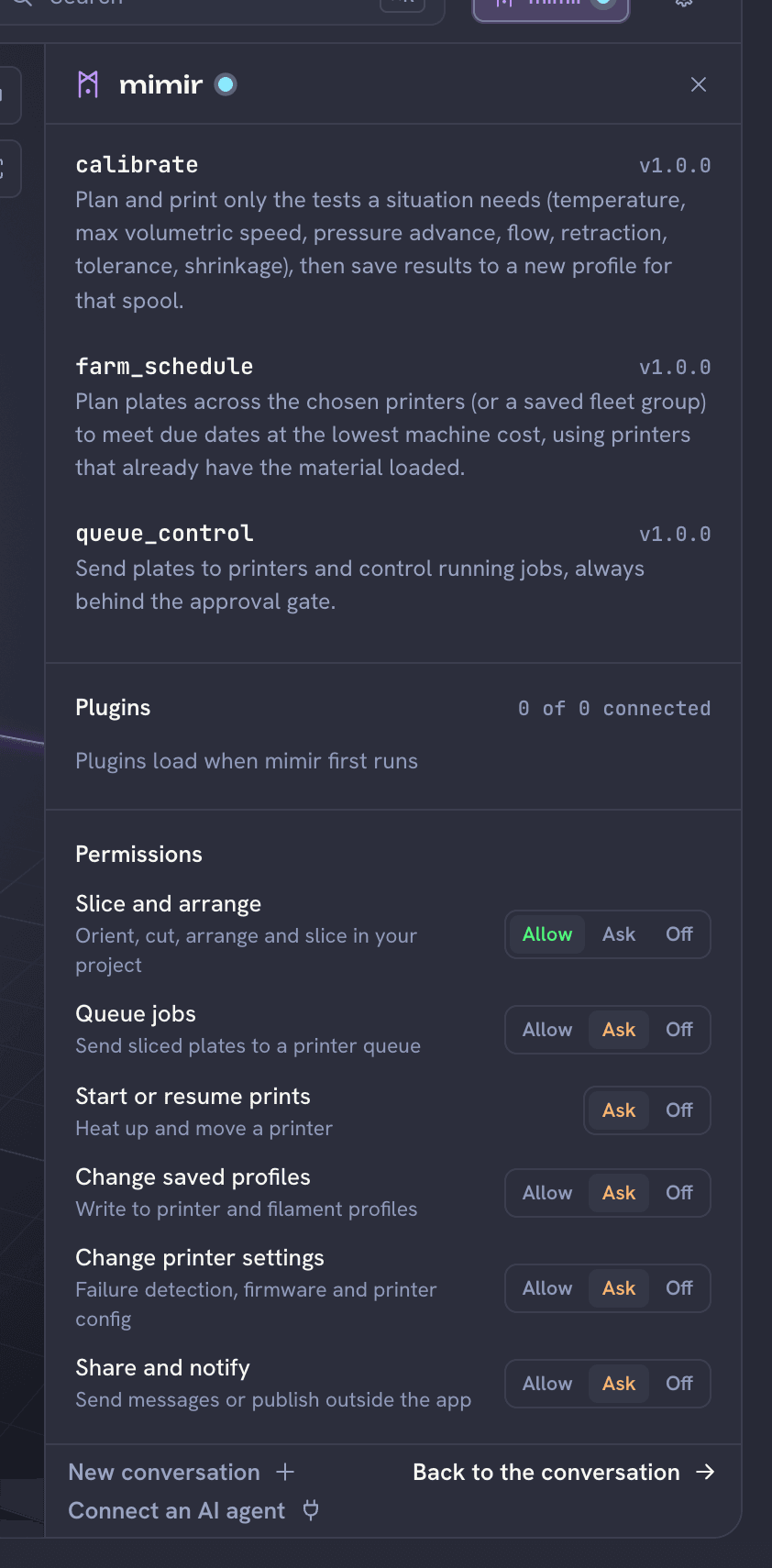
The defaults: only slicing and arranging run without asking.
Print watch
The print watch looks at your printer's camera while it prints, using a detector that runs on your computer, and flags prints that look like they are failing. While a printer with a camera is printing, the mimir button and panel say which printer it is watching, and you can ask how the print is going. Its settings are in Settings, Printer bridge, Print watch. Each printer has a switch, Let mimir confirm with one camera frame, that lets the watch send one frame to your connected model for a second look before it pauses a print. The switch is off by default, and nothing leaves your computer unless you turn it on for a printer. Pausing on its own is off by default too.