
SlicerX can draw and change a part without leaving the slicer. You can sketch and extrude, revolve, push and pull a face, combine bodies, fillet and chamfer edges, keep dimensions on the model and go back to edit any step. Developers can call the same engine from their own code: see Build on the engine.
Where the tools are
The tools live in the Model workspace. Open the Tools menu, or press Cmd+K (Ctrl+K on Windows and Linux) to open the command bar and type what you want, such as "fillet" or "sketch".
| Tool | What it does |
|---|---|
| Sketch | Draw lines, rectangles, circles and arcs on the bed or a flat face, then extrude or revolve them |
| Push and pull | Drag a flat face in or out to add or cut material |
| Fillet and chamfer | Round or bevel straight edges between flat faces |
| Measure | Distance, angle and radius between picked features, kept on the model if you want |
| SVG on a face | Place an SVG outline on a face or the bed, then join it, cut it or make it a new body |
| Shape on a face | A rectangle, circle, slot or polygon on a face, joined or cut |
| Text on a face | Raised or cut lettering on a face |
| Subtract a shape | Cut a cylinder or a box into the selected object from its top |
| Array | Linear, grid or circular copies |
Settings has a Drawing tools switch, on by default. Turning it off hides Shape on a face, Text on a face, Subtract a shape and the basic solids. The other tools stay where they are.
Sketch, then extrude or revolve
Pick a plane.
Choose Sketch and click the bed or a flat face. Look at the sketch turns the view square onto it.
Draw the profile.
Line, Rectangle, Circle and Arc snap as you draw and take typed values. A loop inside another loop is a hole. Round corners rounds or bevels the corner between two straight lines.
Extrude or revolve it.
Extrude pulls the profile into a solid to one side, symmetrically or to two sides. Revolve turns it around an axis in its plane. Either one joins the object, cuts it or makes a new body.
Push and pull
Pick a flat face and drag it along its normal: out adds material, in cuts it away. Hold Shift for 1 mm steps, or type the distance.
Fillet and chamfer
Click a straight edge where two flat faces meet. Shift and click adds more edges, and Whole loop takes every edge around the face you picked. The panel says the largest radius or distance that fits the last edge. A chamfer can set back a different distance on each face. Where three rounded edges meet, the corner becomes part of a sphere, and the result stays watertight.
An edge next to a curved face, such as the facets of a cylinder, cannot be rounded, and the tool says why in a sentence.
Kept dimensions
Measure reads distance, angle and radius between features you pick. Keep this dimension leaves the measurement on the model, and it updates after each edit, so you can watch a wall thickness while you work. "Show or hide all kept dimensions" in the command bar toggles them all.
Editable history
Every object you model keeps an ordered list of the steps done to it. It is one flat list per object, with no nesting.
Edit this step rolls the object back to just before the step and opens the step's own tool, filled in. Apply it and every later step runs again.
Suppress leaves a step out and runs the rest without it. Click again to bring it back.
Delete this step removes it and runs the later steps again.
Click a step's number to see the part as it was right after that step; the line under the list says which step you are looking at. Click the number again, or Back to the latest, to return.
Move earlier and Move later, the arrows beside a step, move it one place and run the steps again. A step that no longer works in its new place says why, and undo puts the order back.
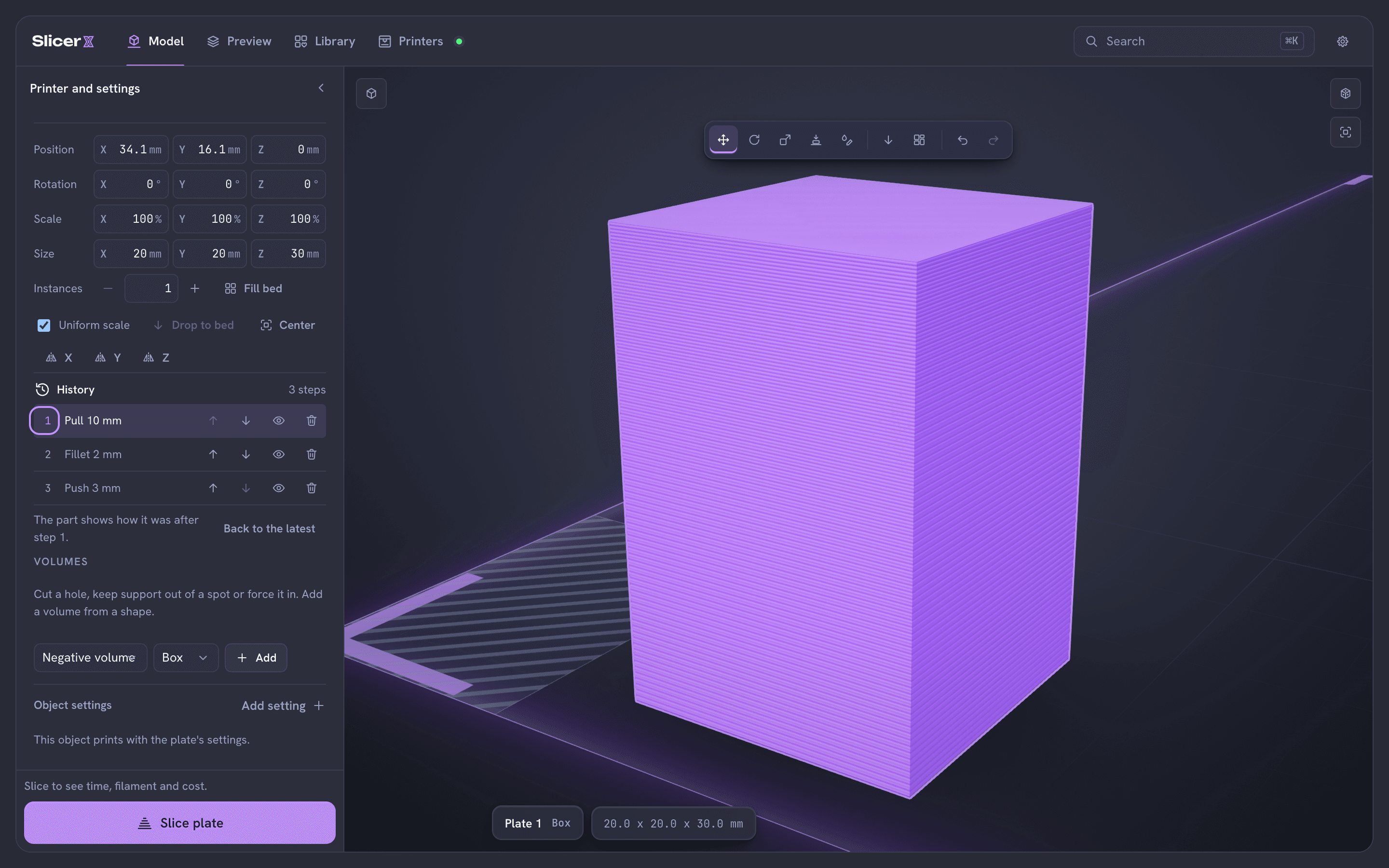
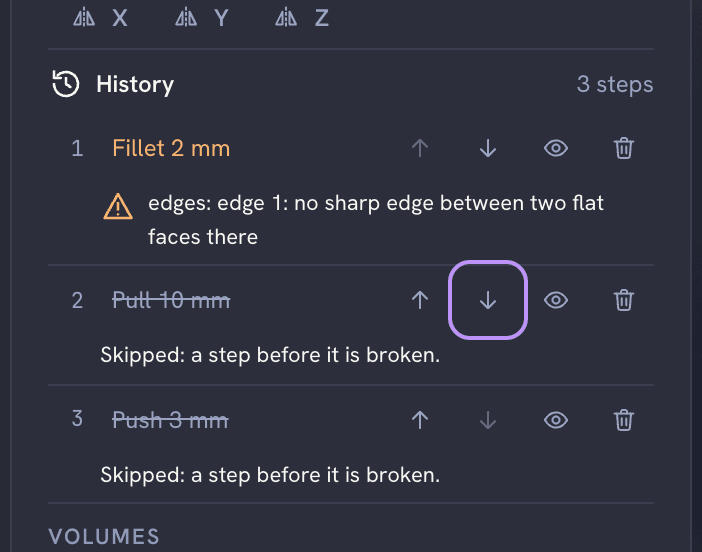
If a step can no longer run, for example because the face it pulled is gone, it is marked broken with the engine's reason. The steps after it are skipped, and the object shows the result from just before the broken step, never a half-applied one. Undo takes back a history edit in one step.
A plane cut or a split ends the history, because the pieces become new objects; the cut panel tells you before you commit. Paint, move, rotate, scale and mirror are not steps.
The history is saved inside the 3MF, in Metadata/slicerx_history.json. The model itself keeps the current mesh, so the file prints the same in any slicer, and other slicers ignore the history.
STEP and other files
SlicerX opens STEP files with Open CASCADE (through occt-import-js) in a separate worker. The model arrives as a mesh and works with every tool above. STL, OBJ with colors, AMF and 3MF open as meshes too.
Not built yet
There is no constraint solver. Sketch sizes are typed values, not constraints that solve against each other.
There is no B-rep kernel. The engine works on triangle meshes, so a STEP file's curves become facets when it opens, and fillets work on straight edges between flat faces with one radius per edge.
There are no expressions linking one step's numbers to another's.